Custom Mapping
Given the flexibility of the MIAPPE standard, the user may want or need to generate custom mappings to accomodate different types of MIAPPE compliant Excel files.
Create a custom JSON mapping file
The mapping file is a .JSON with the following structure:
  {
"Investigation": {
  "Investigation unique ID": {
    "type": {
      "label": "Data Property",
      "name": "dataProperty"
    },
    "name": {
      "name": "hasIdentifier",
      "label": "hasIdentifier"
    },
    "naming_scheme": "@{__value__}",
    "dataProperties": [],
    "objectProperties": [],
    "valueType": {
      "term": "http://www.w3.org/2001/XMLSchema#string",
      "name": "string",
      "label": "string",
      "ontology": "http://www.w3.org/2001/XMLSchema"
    }
  },
  "Investigation title*": {
    "type": {
      "label": "Data Property",
      "name": "dataProperty"
    },
    "name": {
      "name": "hasName",
      "label": "hasName"
    },
    "naming_scheme": "@{__value__}",
    "dataProperties": [],
    "objectProperties": [],
    "valueType": {
      "term": "http://www.w3.org/2001/XMLSchema#string",
      "name": "string",
      "label": "string",
      "ontology": "http://www.w3.org/2001/XMLSchema"
    }
  },
Note
The JSON mapping file currently being used can be viewed or downloaded by clicking in the Download Mapping button. The user can load one of the template JSON files, download it, and modify it to fit their needs.
Use a custom mapping file
To use a custom mapping file alongside your MIAPPE spreadsheet, follow these steps:
Upload a filled MIAPPE spreadsheet as usual.
Click on the Load Mapping button.
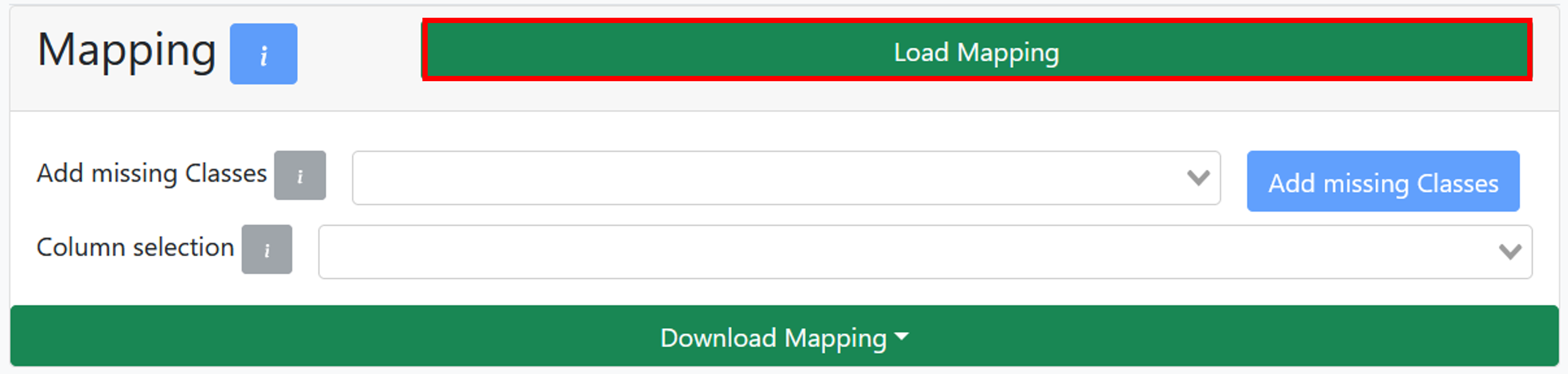
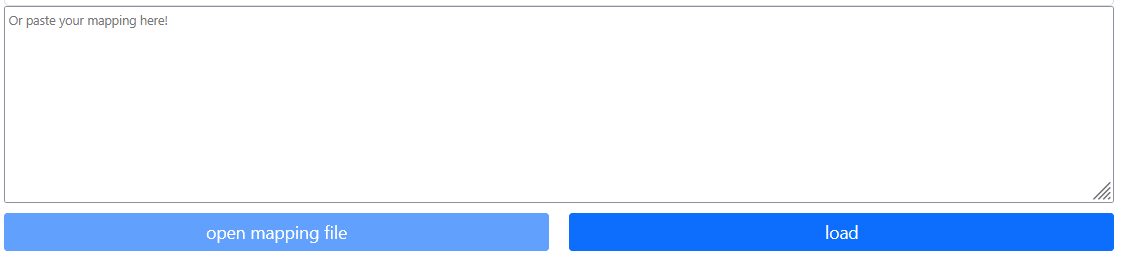
Paste the content of the custom mapping file in the text box.
Warning
The open mapping file option is still under development.
And click the load button.
If any column is not mapped, the user can either modify the JSON mapping file or the MIAPPE spreadsheet, or use the manual mapping option.
Manual Mapping
If the MIAPPE spreadsheet is filled correctly but the mapping is not working as expected, the user can manually map the columns.
To do so, follow these steps: